Activate Licenses
Streamer and Player (unless activated per-session via the Portal) must be activated before use. Activation binds the license to the current computer.
You need internet access when you activate a license or revoke a license.
| Activation contacts the Voysys license server and sends information that identifies the computer. This is required so the license can be tied to the machine. |
Before you start
Make sure you have:
-
The license key from Voysys.
-
Internet access to
https://license.voysys.se. -
The Oden application installed on the computer where it will be used.
-
sudoor root access if you are activating a headless Streamer service installation.
Activate from the GUI
Use the GUI when you can open the application normally.
-
Start Oden.
-
Open .
If Oden already has a key but is not activated, use .
-
Paste the license key exactly as provided, including hyphens.
-
Press Ok.
-
Wait for the status text in the top bar to clear or change.
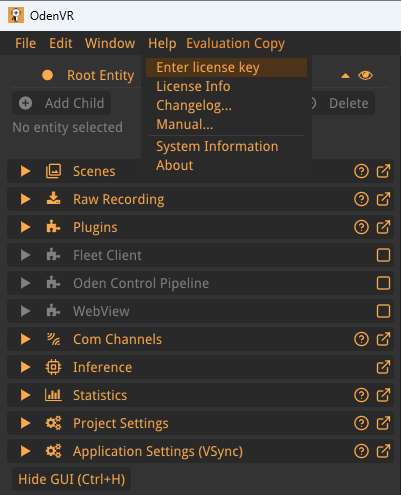
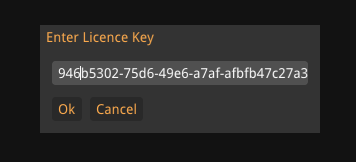
If activation succeeds, Oden stores the key and the activated license data for that application. Restart Oden after the first activation so all licensed features are loaded with the new license state.
To check the current license later, open .
Activate from the terminal
Use terminal activation for headless systems, remote machines, scripted setup, or systems where the GUI is unavailable.
On Linux, use the installed command name:
oden-vr --activate <license-key>oden-streamer --activate <license-key>The command prints Activated successfully when activation is complete.
If the application already has a saved key, Oden refuses to overwrite it unless you explicitly add --force:
oden-streamer --activate <license-key> --forcePrefer revoking the old key before replacing it.
Use --force only when you are intentionally replacing the saved key on the same computer.
Headless Streamer and services
For Oden Fleet Streamer installations, activate as any local user and restart the service:
oden-streamer --activate <license-key>
sudo systemctl restart oden-streamer.service
The license is stored machine-wide on Linux, so the root-run service uses the license activated by any user.
Move a license to another computer
A license can only be activated on one computer at a time. Before using the same license key on another computer, revoke it on the current computer while that computer still has internet access.
From the GUI:
-
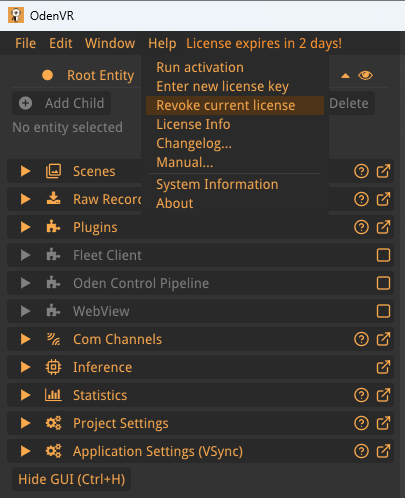
Open .
-
Press Ok.
-
Wait for the status text to report that revocation succeeded.
From the terminal:
oden-vr --revokeoden-streamer --revokeAfter successful revocation, activate the license on the new computer.
| Do not uninstall or wipe the old computer before revoking the license if you plan to reuse the same key. If the old computer is no longer available, contact Voysys support. |
Offline operation
Oden does not require a continuous internet connection after a successful activation. It does require internet access again before the activated period expires.
For offline deployments:
-
Activate the license while the machine is online.
-
Open and check Activated To.
-
Plan a maintenance window before that date to reconnect the machine and let Oden refresh the activation.
-
Revoke the license before decommissioning or replacing the computer.
Oden shows a warning when the license is close to expiry. If a saved key exists and the license is near expiry, Oden attempts to refresh it automatically when the license server is reachable.
Troubleshooting
Unable to connect to license server-
Check internet access, DNS, firewall, proxy, and whether
https://license.voysys.seis reachable from the computer. License key was not recognized by the server-
Check that the key was pasted correctly, including hyphens.
License key has already been activated on another computer-
Revoke the license on the other computer first, then activate it again on this computer.
License not valid for this application-
The license does not include the product you are trying to run. Check or contact Voysys to confirm which applications the key allows.
License has expiredorLicense key has expired on the server-
The license period has ended or the local activation was not refreshed in time. Reconnect the computer to the internet and run activation again. If the message remains, contact Voysys.
License is revoked-
The local license data has been marked as revoked. Activate with a current license key.
Where Oden stores license data
Oden stores the saved key and activated license data per application.
The files are named key.conf and license2.lic.
Both Windows and Linux store them machine-wide, so every user on the computer shares one activation.
| Application | Windows | Linux |
|---|---|---|
OdenVR |
|
|
Oden Dome Player |
|
|
Oden Streamer / Oden Fleet Streamer |
|
|
On Linux, the .deb package creates /var/lib/oden/license writable by all local users, so activation does not need sudo.
When a Linux computer has no /var/lib/oden/license, for example an installation that did not use the package, Oden uses $HOME/.config/oden/<application>/ for the user that runs it.
The first start after an upgrade copies the existing license, key, dome calibration and global plugin settings from $HOME/.config/oden/<application>/ into /var/lib/oden/license/<application>/ and leaves the originals in place.
For project and application config context, see Projects and Scenes.