Application Settings
Application settings are settings outside the scope of a project and will apply changes to the application itself.
- Window Mode
-
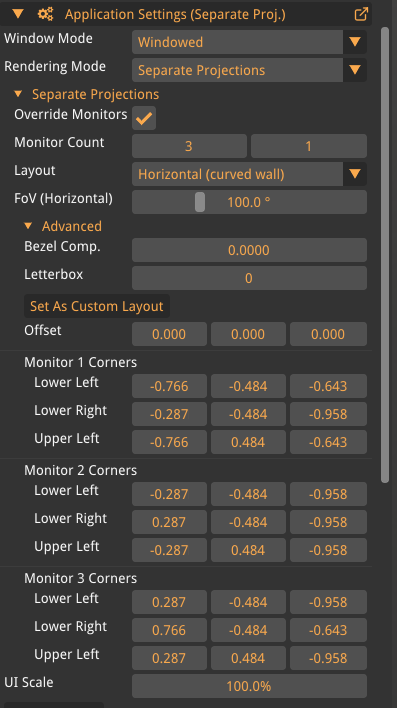
Select the desired window mode: Fullscreen, Windowed, Windowed Fullscreen, or Spanning Fullscreen. For lowest latency choice Fullscreen.
- Monitor
-
Select which connected monitor Oden should be in windowed fullscreen on.
Only displayed when Window Mode is Windowed Fullscreen. - Rendering mode
-
Selection of different projection matrices used to project the images onto different displays.
- Single Projection
-
Single display projection.
- Separate Projections
-
Multiple display projection where the input image is being projected onto multiple displays. Contact Voysys for more information on how setup can be done optimally.
- Cylindrical
-
May be beneficial if a very narrow display is used and a broad image needs to be projected. Should normally not be used unless in special circumstances.
- Dome
-
Projects the image onto a dome display. Available when a dome renderer is configured.
- VSync
-
Screen tearing is a visual artifact in video display where a display device shows information from multiple frames in a single screen draw. Vertical synchronization (VSync) is an option which prevent the video card from doing anything visible to the display memory until after the monitor finishes its current refresh cycle.
- MSAA
-
Multisample anti-aliasing (MSAA) is a type of spatial anti-aliasing, a technique used in computer graphics to remove artifacts in raster images. Works by simply rendering a scene at a higher resolution, and then downsampling to a lower-resolution output.
- Scroll Mode
-
Select mouse or trackpad scrolling.
- Mouse Inverted
-
Invert the input of the mouse when moving objects around in the 3D-engine.
- Inhibit Mouse Look
-
If true, will inhibit the ability to move around in the view in 3D space with the mouse.
- GUI Color Mode
-
Select the color template for the GUI: Oden Accent or Monochrome.
- Full Project Files
-
If disabled, default values will not be printed to the project file.
- No Prompt On Exit
-
Show no prompt when closing a project or exiting the program.
- Only Show Exit Dialog
-
If enabled, when having the GUI hidden and closing the application with for instance "alt + F4" will result in that only the exit dialog will be shown and not the whole GUI.
- Auto Template
-
Path to a .vtemplate file that will be applied to any project loaded.
- Camera Calibration
-
Path to a folder containing .camera files. All files in the folder which ends with '.camera' will be loaded into Oden. The calibrations will be available in the dropdown menu under Calibration→Stored Calibrations→Calibration Presets, the name of the file will be the name in the dropdown menu. The path can contain environment variables, for example, %HOME%\dev\Cameras\ is acceptable and will expand the HOME variable.
| The path must end with a slash, i.e. C:\dev\Cameras\ |
- Shrink View When GUI Visible
-
When this setting is enabled, Oden will use the viewport that is visible to the user, and then when hiding the GUI object will move because the viewport gets larger. If this setting is disabled, Oden will use the whole window as a viewport even the area behind the GUI. This will make so the objects do not move around when hiding the GUI.
- Keyboard Shortcuts
-
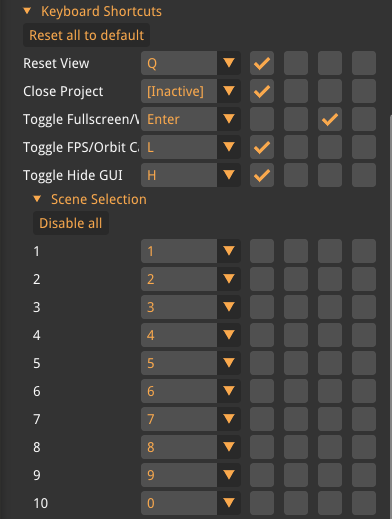
In Oden, there are a couple of keyboard shortcuts that can be remapped. Shortcuts combine a button and zero or more modifiers and the available modifiers are ctrl, shift, alt, and super. Modifiers can be stacked by selecting multiple. To disable a shortcut you can select a button called [Inactive] which will deactivate the shortcut.