Network
The network system can be configured in multiple ways depending on your network setup. By default, the Streamer acts as the initiator of the connection and the Player acts as a responder. Also, a single link is used by default. In this setup, the receive port of the Player must be accessible by the Streamer.
Settings
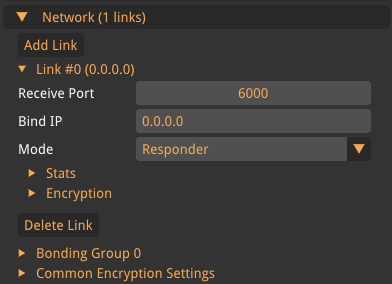
- Bind IP
-
The IP address to bind to when opening the network socket. If nothing or
0.0.0.0is specified, the address will be assigned automatically by the operating system. - Bind Device
-
Linux only. This means that all traffic associated with this link will go through the specified interface. Be aware that this also effectively bypasses any configured network routes on the system.
- Mode
-
The link mode to use. An Initiator link will try to initiate the connection. A Responder link will listen and then reply to traffic from an Initiator link. More technically, this means that an Initiator link can be behind a NAT and the Responder link must be on a public IP. This restriction can be circumvented by using encryption and routing through a WireGuard server, see Encryption.
Link Stats
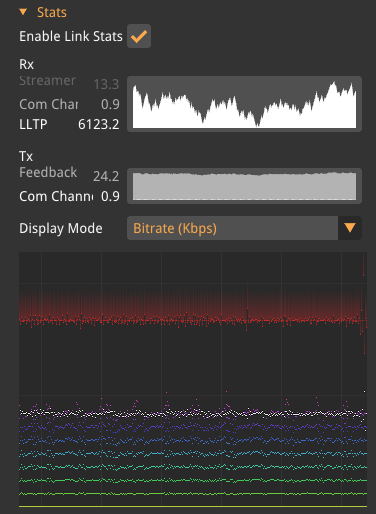
If you enable link stats you get the following stats for each link.
The first section shows the incoming and outgoing bandwidth categorized by the traffic type.
The second section of the link stats shows a graph where each column is a frame and each pixel in that column is the relative timing of a packet in that frame and the top red pixel shows when the first packet of the next frame arrived.
Encryption
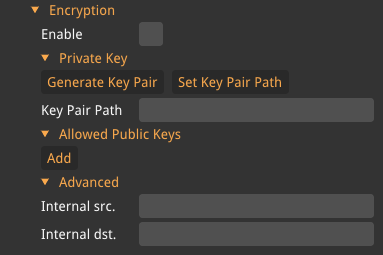
The encryption tab configures encryption and authentication of the traffic that the application sends using the WireGuard protocol.
To set up encryption, first configure the local key pair, then add the public keys of each peer you want to allow communication with. If traffic is relayed through a WireGuard server, the Internal src./dst. settings under Advanced must also be configured.
- Enable
-
Turns encryption on or off for this link.
Private Key
- Generate Key Pair
-
Opens a save dialog to generate a new private/public key pair and store it on disk.
- Set Key Pair Path
-
Opens a file dialog to load an existing key pair from disk.
- Key Pair Path
-
Path to the key pair file. Can be set directly or filled in by the buttons above.
- Public Key
-
Read-only view of the public key derived from the loaded key pair. Share this with peers so they can authenticate traffic from this application.
Allowed Public Keys
A list of public keys for the remote endpoints that are allowed to communicate with this application. Use Add to append a new entry and Remove to delete one. Up to 16 keys can be added.
| Initiator links only use the first public key in the list. |
Advanced
- Internal src.
-
When relaying traffic through a WireGuard server, set this to the internal IP address of the local endpoint as configured in the WireGuard server.
- Internal dst.
-
When relaying traffic through a WireGuard server, set this to the internal IP address of the remote endpoint as configured in the WireGuard server.
P2P
P2P enables a link to automatically transition to a peer-to-peer connection if possible. This is useful in order to reduce network latency if connected over a WireGuard server. This has no effect if the connection is already peer-to-peer.
- Enable
-
Enables the P2P negotiation
- STUN Server
-
STUN server used to detect the client WAN IP and port. The default server
stun.l.google.com:19302is freely provided by Google and used for WebRTC in Google Chrome.